Design Software Brands
You want to model something in 3D with SketchUp, but you get stuck at the first hurdle: is this thing free or not? Some people online say it's free, others say you have to pay. Who's right?
The answer is both. SketchUp has a genuinely free web app, and it also has a whole tier of paid subscription plans — and the gap between them is big enough to affect whether you can use it commercially or install plugins. This article lays out the line between free and paid, the pricing, how to get each version, where to find assets, and the snags beginners run into most often.
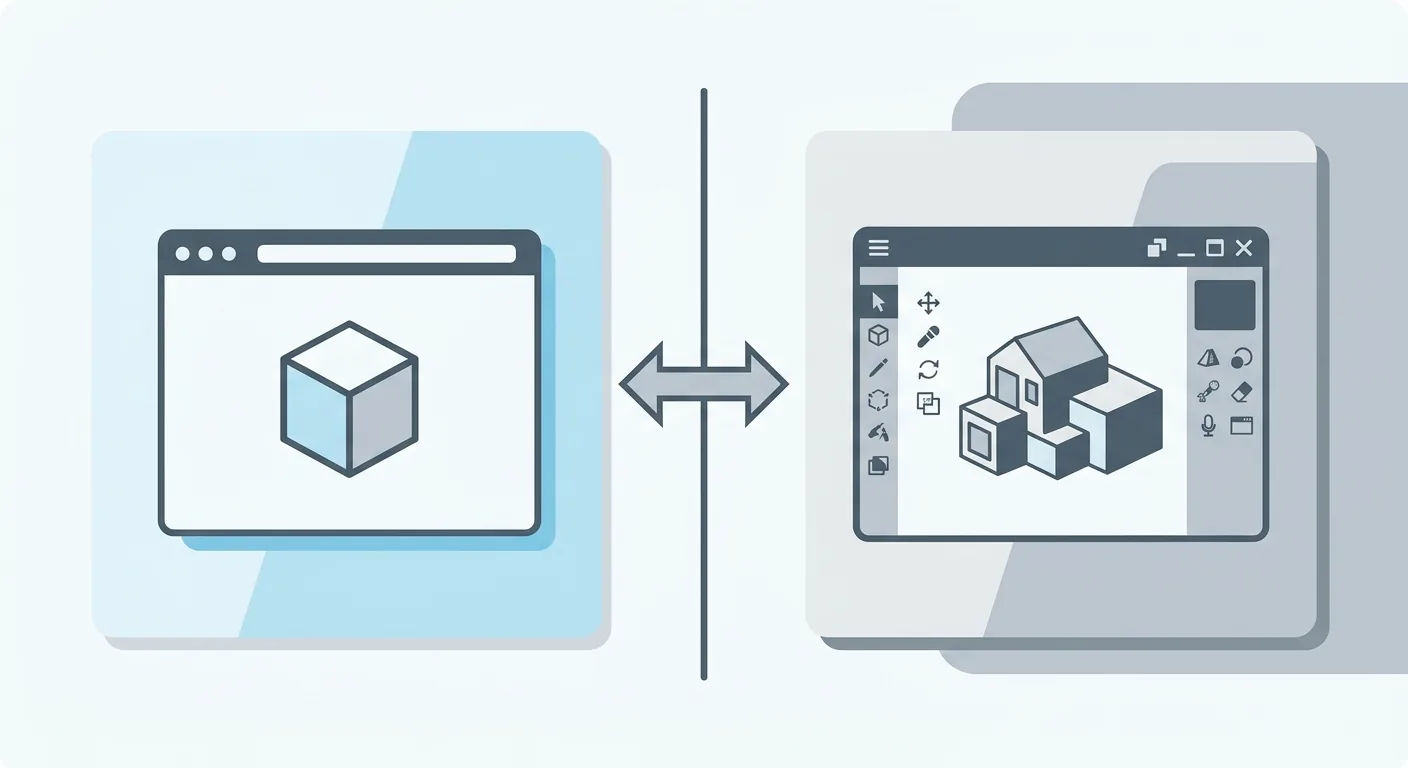
Caption: SketchUp Free runs in your browser, no install, non-commercial only; the paid version runs on desktop, supports plugins, and can be used commercially — two very different paths
Key takeaway: According to Mordor Intelligence's 2026 report, the interior design software market is estimated at USD 7.59 billion in 2026, with a projected 11.12% CAGR for 2026–2031 (Mordor Intelligence, 2026). SketchUp captures both entry-level and professional segments of that market through its "free web app plus paid desktop" two-track strategy.
SketchUp does have a genuinely free version: SketchUp Free, a browser-only, no-download, no-install web tool officially positioned for personal, non-commercial use (SketchUp/Trimble, SketchUp Help, 2026). The paid Go, Pro, and Studio tiers add desktop software, plugins, advanced export, and commercial licensing.
Here's the plain-language version up front: it's genuinely free, but a large chunk of the functionality is switched off.
SketchUp Free costs nothing — open your browser, log in, and start modeling. It gives you basic modeling tools, cloud storage, and access to 3D Warehouse for ready-made models. For anyone who just wants to try out what 3D modeling is about, this version is more than enough.
But it comes with a few hard limits. No commercial use, limited export formats, and no desktop plugins. It won't work without an internet connection since everything runs in the cloud.
The three paid tiers step up in depth. Go is built around iPad and web use — smoother than the free version, but still no desktop app and no access to the Extension Warehouse (the plugin marketplace). Pro adds full desktop modeling, LayOut for documentation, and enhanced IFC and DWG compatibility. Studio adds V-Ray photorealistic rendering, scanning, and Revit import on top of that (SketchUp/Trimble, 2026).
A table makes this easiest to scan:
| Plan | Platform | Plugin Support | Commercial Use | Best For |
|---|---|---|---|---|
| SketchUp Free | Web | ❌ | ❌ | Pure experimentation, personal practice |
| Go | Web + iPad | ❌ | ✅ | Lightweight modeling on a tablet |
| Pro | Desktop + Web | ✅ | ✅ | Designers who need CAD output |
| Studio | Desktop + Web | ✅ | ✅ | Needs V-Ray photorealistic rendering |
This is where a lot of people trip up. If you use the free version and take on a paying client, that counts as commercial use, and in principle you're supposed to upgrade to a paid plan. The licensing line isn't about how complex your model is — it's about whether you're making money from it.
Our advice is simple: use Free for pure practice, upgrade to Pro the moment you're delivering paid work. Saving that subscription fee isn't worth the licensing risk.
SketchUp's paid plans run on an annual subscription: Go is around $129 USD/year, Pro around $399 USD/year, Studio around $859 USD/year; Go and Pro also offer monthly billing at roughly $19.99 and $99.99 USD/month respectively, while Studio is annual-only (SketchUp/Trimble, 2026). These figures may change with official updates — check the checkout page for the current price.
The correct answer to "does SketchUp cost money" is: it depends which version you're using.
Let's break the pricing down further. Annual billing is cheaper than monthly, which is the norm for subscription software — if you only need it for a short project, monthly Pro is a flexible option you can cancel once you're done. For long-term use, annual billing is the money-saver.
Users often ask how the USD price converts to their local currency. Since SketchUp prices in USD, the actual amount you pay depends on exchange rates and taxes — rather than quote a number here that will go stale, check the official checkout page for the current figure.
The free web version has three limitations worth remembering. First, limited export formats — you don't get the CAD files that Pro provides. Second, no desktop plugins at all, so rendering tools like V-Ray or Enscape are off the table. Third, no offline use.
These limits go unnoticed for pure practice, but they're a hard ceiling for anyone taking on client work. Have you ever wondered whether what's holding you back isn't your modeling skill, but simply that this version never had that feature enabled?
The most common misconception is treating the free web version as a "trial of the full version." It isn't a trial — it's a standalone version with features deliberately trimmed, and using it longer won't magically unlock paid features.
Another misconception is assuming Go is equivalent to the desktop version. Go has no desktop app and no plugin marketplace; if you want the full desktop experience, Pro is the minimum. Buying the wrong tier is the most common way beginners waste money.
There are two paths to getting SketchUp: the paid desktop version requires "downloading and installing," while the free version is "just log in on the web," no download needed. Assets, meanwhile, all come from 3D Warehouse, a free model library you can import from once logged in (SketchUp/Trimble, 2026).
Confusing these two paths is where a lot of people get stuck on their very first step.
For the desktop version (Pro/Studio), go to the official website, download the installer using your paid account, and install it on your computer. Once installed and licensed, you can model offline. This is the path that gives you the full toolbar and plugin support.
One reminder: the desktop version has graphics-card requirements, and older computers may struggle with large models. Check the official system requirements before installing.
The free web version is even more direct. Open your browser, go to the official web-app portal, log in with a free account, and your canvas appears — nothing to install. This is the answer for anyone searching for "SketchUp free web version."
We actually timed it ourselves: from clicking the link to pulling out your first cube took about a minute. For anyone who just wants to poke around quickly, that's about as low a barrier as it gets.
Don't want to model every piece of furniture from scratch? 3D Warehouse has an enormous library of free models — sofas, tables, chairs, doors, windows, all searchable. Inside SketchUp, search for a model by name, pick one, and import it directly into your scene — this covers searches for "sketchup free model" and "sketchup free model download."
Two things to watch for, though. Some high-detail models come with large file sizes that will slow the whole file down; and each model's license terms vary, so check them carefully before commercial use.
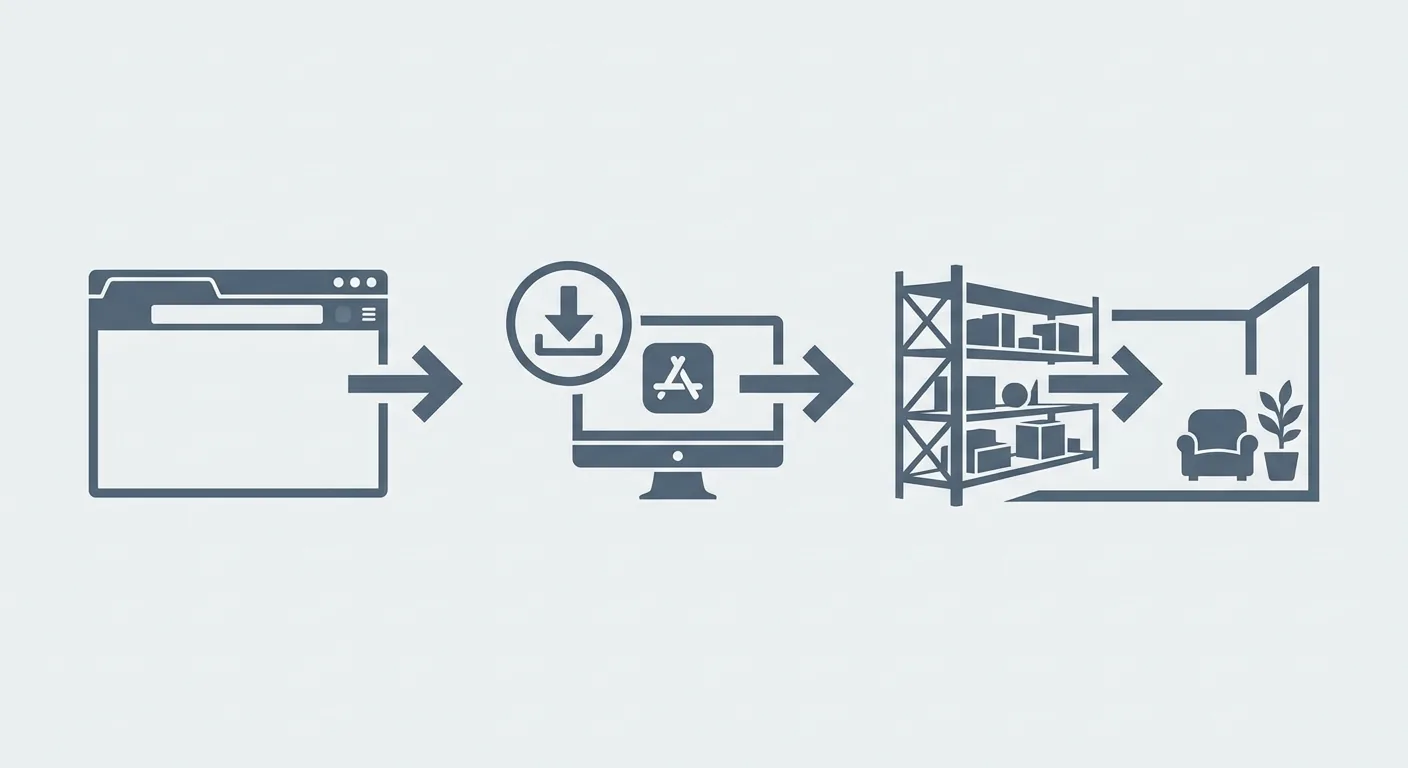
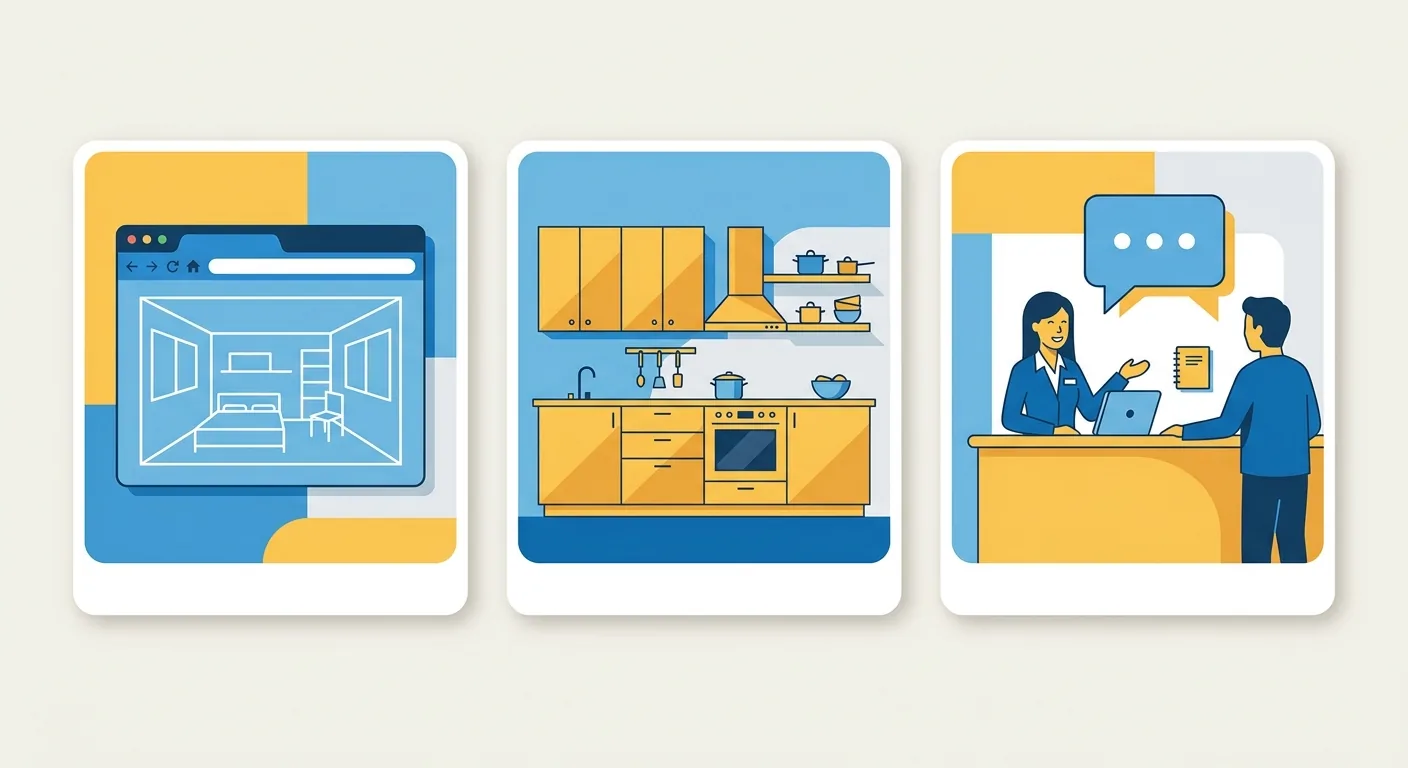
Caption: Three separate paths (1) Web version: log in via browser and go (2) Desktop version: download the installer (3) Assets: search and import from 3D Warehouse
The two most-searched beginner questions are "SketchUp not responding" and "how do I make an animation in SketchUp." The former is usually tied to a model that's too heavy, a struggling graphics card, or a plugin conflict; the latter is done by chaining "Scenes" together across different viewpoints to export as an animation. Neither is hard to fix once you know the direction.
Crashes are usually about your computer, not the software being broken. Too many polygons in a model, oversized texture maps, or too many plugins running at once will all bog it down. The first move is to disable any unnecessary plugins, then swap out any overly detailed models for simplified versions.
We ran into this ourselves once: importing a super-detailed plant model made the whole file grind to a halt instantly. Swapping it for a low-poly version fixed it right away. So when things get sluggish, suspect a heavy model first.
SketchUp doesn't animate frame by frame — it relies on "Scenes." You save a scene for each viewpoint, and the software automatically interpolates between them, exporting a video with camera movement. That's how you'd create a demo animation that circles around a house.
The basic steps: set up your first viewpoint and save it as a scene, move the camera and save a second scene, and so on, then export the animation at the end. The free web version's export capability is limited — for detailed animation you'll still need the desktop version.
Three mistakes come up constantly. One, not locking the push/pull direction, which skews the drawing instantly. Two, poorly organized groups, where editing one spot drags a whole section along with it. Three, wrong units, which throws off the actual furniture dimensions you end up modeling.
Dimensions matter a lot here. You spend hours building a nice cabinet, only to realize after setting the wrong units that it's off by a chunk once you actually place it in the room — that kind of wasted effort really stings. To avoid it, set your units to centimeters before you start drawing, and get in the habit of checking measurements as you go.
If your real goal is just "confirming whether this furniture fits," SketchUp might be overkill. SketchUp is a professional 3D modeling tool — powerful and flexible, but with a steep learning curve; Roomfit takes a different approach entirely — no modeling, no installation, just placing furniture into your layout at true 1:1 scale as fast as possible. The two solve fundamentally different problems.
For further reading, check our interior design software comparison overview, which lays out where 9 tools each fit.
SketchUp's strength is that it can build anything. From a single chair to an entire building, if you know the tools, you can draw it. Designers and architecture students use it for portfolio work precisely because of that freedom.
The cost is time. Push/pull, groups, components, layers, materials — this whole logic takes a while to get comfortable with. If your goal is "get furniture placed today," learning to model alone will already slow you down.
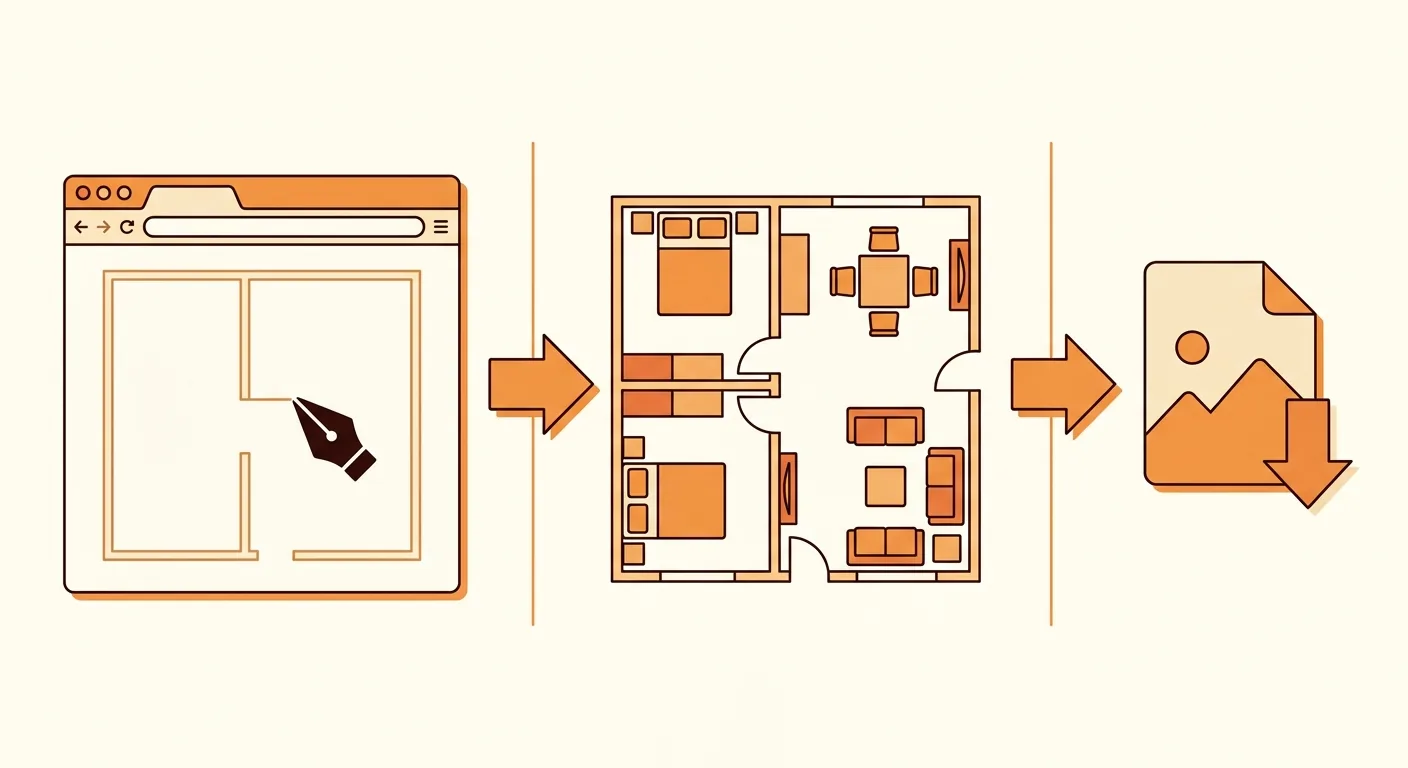
Roomfit flips the approach and lowers the barrier as far as possible. It doesn't ask you to model anything — you upload a floor plan, drag furniture in, place it at real centimeters, and it automatically labels walkway clearances and snaps to walls. You can even bring in a friend or family member to edit the same layout together.
Three concrete differences set it apart from SketchUp:
At the end of the day, it's a division of labor. If you're doing detailed 3D work, producing architectural models, or taking on professional projects, SketchUp is the right tool. But if all you need is "confirm this sofa and coffee table fit in the living room and the walkway is still clear," Roomfit gets you an answer in minutes.
Our actual go-to approach is often: use Roomfit first to get the dimensions right and confirm the layout works, then move to SketchUp when you need detailed 3D. To understand how professional and scanning tools split the work, check our Magicplan & HomeByMe scanning tutorial; to compare cloud rendering options, Kujiale & Coohom cloud 3D tutorial and Homestyler 3D rendering tutorial are also worth a look. If you prefer a free open-source floor-plan tool, Sweet Home 3D's free tutorial is another entry point.
| Comparison | SketchUp | Roomfit |
|---|---|---|
| Core purpose | Professional 3D modeling | 1:1 true-to-scale placement |
| Learning curve | High, requires learning modeling | Low, drag and drop |
| Installation | Desktop version needs download | No download, opens in browser |
| Dimensional accuracy | Accurate, but you measure it yourself | Auto-labeled clearances |
| Multi-user collaboration | Needs separate integration | Built-in collaborative editing |
Yes. SketchUp Free is a browser-only, no-download, no-install free web app, officially positioned for personal, non-commercial use (SketchUp/Trimble, SketchUp Help, 2026). It gives you basic modeling tools and cloud storage, but doesn't allow commercial use, desktop plugins, or offline access. It's plenty for pure practice or experimentation — once you start taking paid client work, you should upgrade.
It's an annual subscription: Go is about $129 USD/year, Pro about $399 USD/year, Studio about $859 USD/year, with Go and Pro also available monthly (SketchUp/Trimble, 2026). Annual billing is cheaper than monthly; monthly Pro works well for a short-term rush project. SketchUp prices in USD, so your local-currency total will depend on exchange rates — check the checkout page for the actual figure rather than relying on an outdated number online.
Go is paid, but it's still primarily web- and iPad-based — no desktop app, no access to the plugin marketplace. Both the free version and Go lack desktop plugins; the difference is that Go allows commercial use and offers a smoother experience. If you want the full desktop toolbar, V-Ray rendering, or CAD file export, Pro is the minimum — not Go. Buying the wrong tier is the most common way beginners waste money.
Crashing is usually about your computer struggling, not the software being broken. Common causes are models with too many polygons, oversized texture maps, or plugin conflicts. Disable unnecessary plugins first, swap high-detail models for simplified versions, then clear out any unused components from the scene. In our own test, swapping a super-detailed plant model for a low-poly version fixed the lag instantly. Also check that your graphics card meets the official requirements before running large models on an older computer.
Not necessarily. SketchUp suits professional modeling and has a steeper learning curve; if your goal is just "get the placement right," using Roomfit — which requires no modeling and no installation — is faster. It places furniture at real 1:1 centimeters, labels walkway clearances automatically, and supports collaborative editing. In practice, you can get the layout right first and move to SketchUp when you need detailed 3D — the two don't conflict.
The line between SketchUp's free and paid versions comes down to one sentence: the free web version is genuinely free, but trimmed down, non-commercial, and plugin-free; for full modeling and commercial use, you'll be choosing among Go, Pro, and Studio pricing. Downloads go through the desktop version, the web version opens directly, and assets come from 3D Warehouse — three separate paths, don't confuse them.
As for whether you should learn SketchUp, think through your goal first. If you're doing professional 3D modeling, it's worth the time investment. But if you just need to quickly confirm furniture fits and the walkway is clear, you don't need to take on the modeling learning curve — Roomfit gets you an answer in minutes. No tool is inherently good or bad, only a better or worse fit for what you need right now.
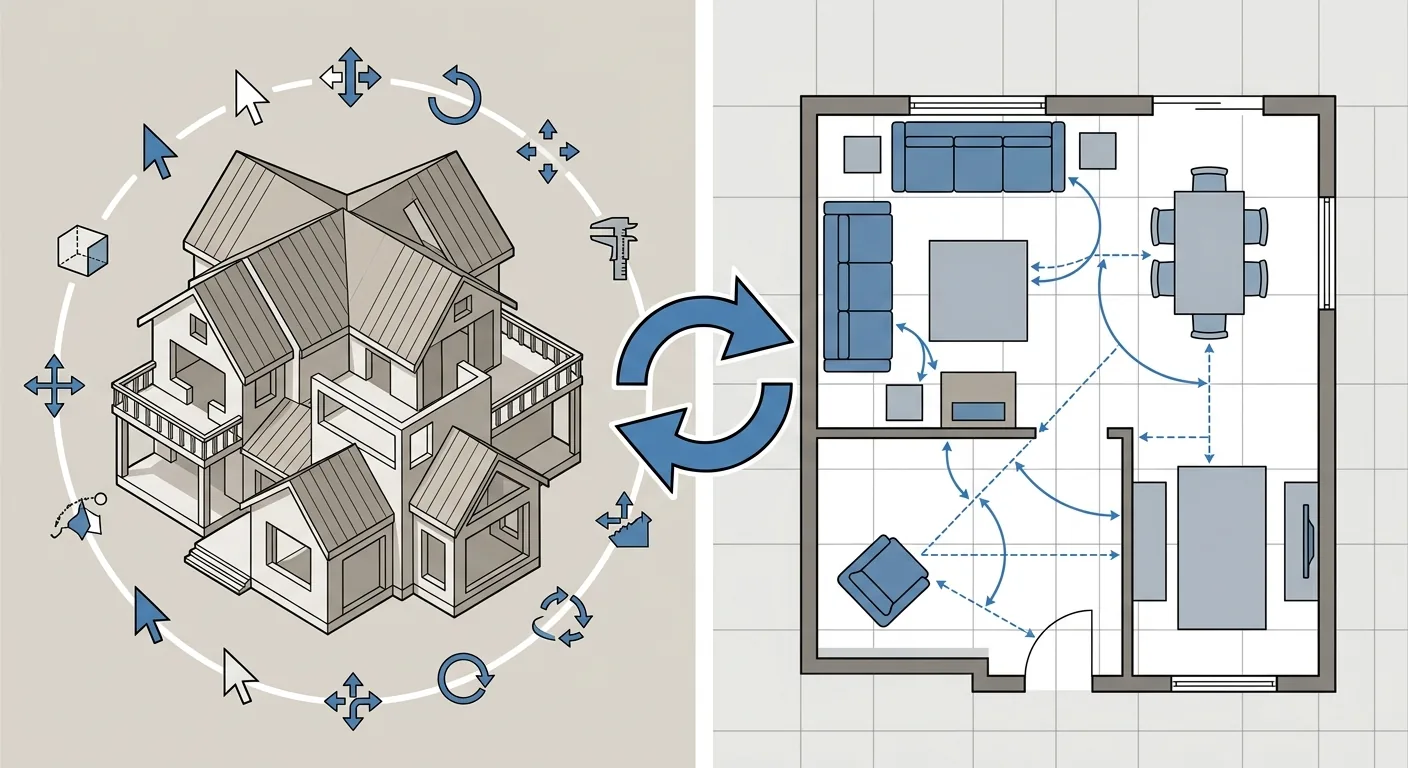
Caption: A division of labor, not a conflict — get the sizing right and layout confirmed with Roomfit first, then move to SketchUp when you need detailed 3D
Arrange furniture in your space at true 1:1 scale with Roomfit and see exactly how much walkway is left — no install, no sign-up.
Start with Roomfit →